




About 2 Factor Authentication
- 2FA (sometimes called MFA – multifactor authentication) protects your account by requiring an extra step in the login process.
- It prevents hackers from just guessing your password to get into your account.
- With 2FA, you need a code from another source as well as the password.
- In Smartermail, texting the code is not possible. Options include
- A second email account
- An Authenticator App like Last Pass, Google Authenticator or Microsoft Authenticator.
- It also changes the password used by automated services like your IMAP client on your computer or phone to a more secured password.
NOTE: 2FA has to be enabled on your domain before users have access to the settings.
2FA can be enabled (optional where users have a choice) or enforced (required for all users) for your domain.
If you want 2FA enabled or enforced on your domain, contact us at 724-523-3001 or info@chroma-marketing.com
2FA can be enabled (optional where users have a choice) or enforced (required for all users) for your domain.
If you want 2FA enabled or enforced on your domain, contact us at 724-523-3001 or info@chroma-marketing.com
The following information shows you how to set up 2FA using either method. Make sure you continue to the end to see the password changes for email clients.
Setting up 2FA
- Login to your account at https://wm.gds.us.
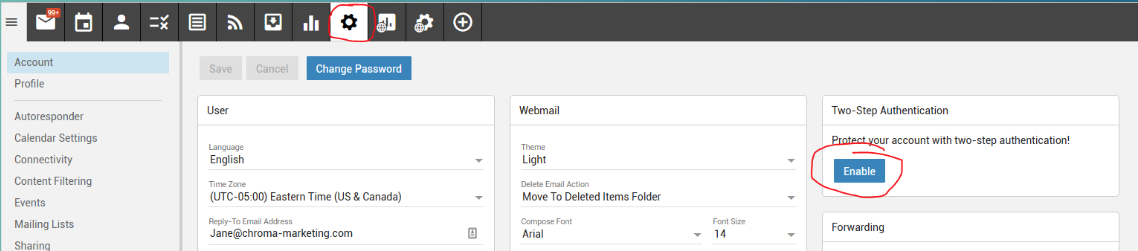
Click Settings
Under Two-Step Authentication, click Enable - Choose if you want to use an Authenticator App or Recovery Email Address
NOTE: A recovery email is required either way.
AUTHENTICATOR APP
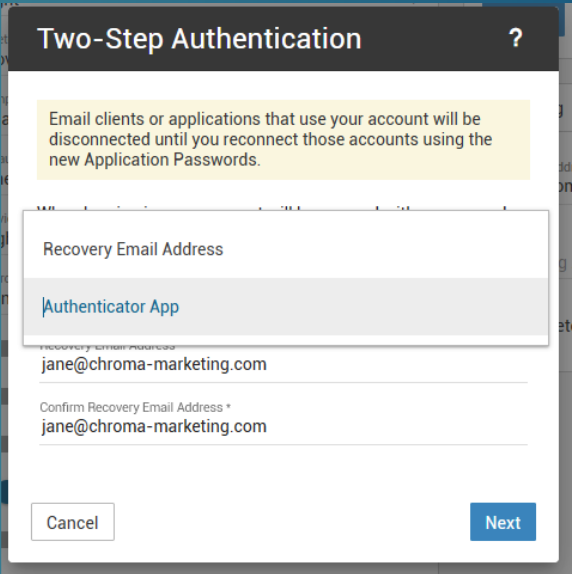
- Click Next
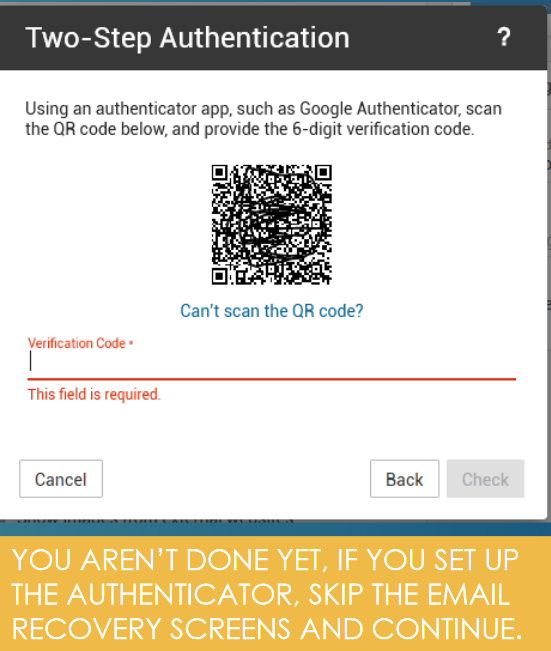
- CHOOSE METHOD AUTHENTICATOR APP
- Open the app on your phone and scan the QR code.
- The app provides a 6 digit code that you must enter.
- The code changes every 30 seconds so make sure you have time to enter it and hit Check before the code changes.
RECOVERY EMAIL
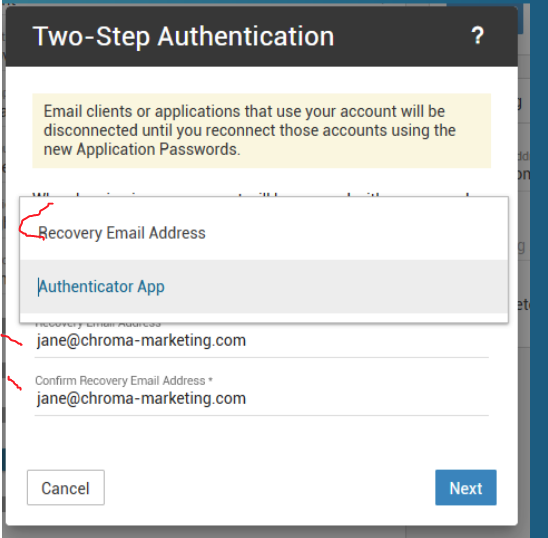
• Enter the email address twice
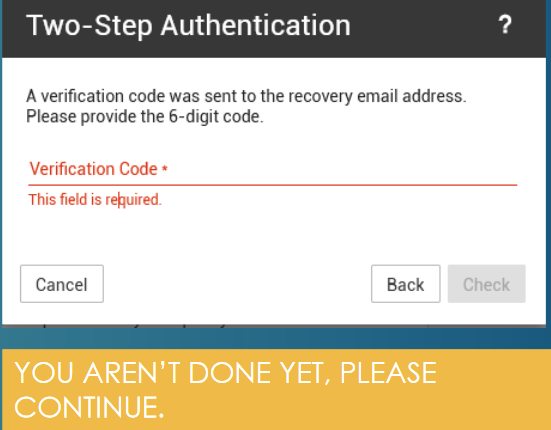
• Go to that email account and copy the verification code. It should come within a few minutes. If you don’t receive the email, please check your junk mail. The sending address is noreply@yourdomain.com. (Where yourdomain.com is your actual domain name.)
• Paste the verification code into the box and click Check
• Go to that email account and copy the verification code. It should come within a few minutes. If you don’t receive the email, please check your junk mail. The sending address is noreply@yourdomain.com. (Where yourdomain.com is your actual domain name.)
• Paste the verification code into the box and click Check
USING 2FA IN WEBMAIL
Every time you log into Webmail
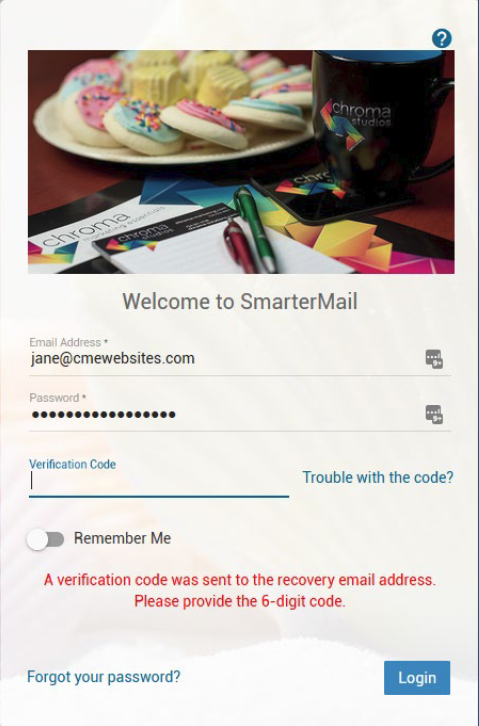
• When you log in to webmail, you’ll be asked for a verification code.
• Check your Authenticator App or your Recovery Email for the code.
• If you click Remember Me, it won’t ask every time – just when you must log in.
• Check your Authenticator App or your Recovery Email for the code.
• If you click Remember Me, it won’t ask every time – just when you must log in.
USING 2FA IN OUTLOOK PHONE OR OTHER EMAIL CLIENT
When you set up 2FA, the password used by Outlook, Phone, (or other email client automatically changes.)
You’ll need to go to any IMAP account in Outlook or on any device you have setup and change the password to the 2FA password.
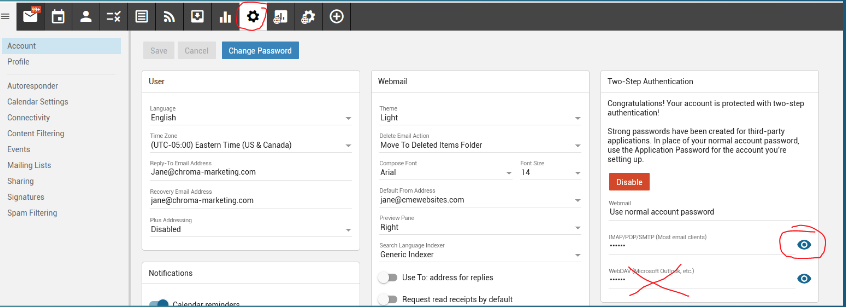
To Find the 2FA Password
• Under Settings and Two-Step Authentication, click the eyeball icon next to IMAP/POP/SMTP and you’ll see the password.
• Copy that password and paste it into Outlook or type it into your phone settings.
• Copy that password and paste it into Outlook or type it into your phone settings.
NOTE: Even though the second password says Microsoft Outlook, do not use this. You are set up with IMAP
(even in Outlook) so use that first password.
(even in Outlook) so use that first password.
You can also view this information in the attached PDF.
