







Trusted Senders vs. Blocked Senders
Trusted Senders are commonly called whitelisted or allowlisted senders. These are email addresses or domains that you trust and want SmarterMail to treat as safe. Messages from Trusted Senders are less likely to be marked as spam or filtered into junk. Blocked Senders are the opposite. These are commonly called blacklisted or blocklisted senders. Messages from blocked addresses or domains are treated as unwanted and may be moved to Junk Email or deleted, depending on your spam filtering settings.
- A Trusted Email Address should be used when you want to trust one specific sender, such as
jane@example.com. - A Trusted Domain should be used when you want to trust all email coming from a company or organization, such as
example.com.
Be careful with Trusted Domains. For example, it would usually be a bad idea to trust gmail.com, outlook.com, or yahoo.com, because that would potentially trust mail from anyone using those services. For Gmail or other public email services, add the person’s full email address instead.
All Smartermail users can mange their own Trusted Sender (and Blocked Sender) list from the webmail interface at https://wm.gds.us. DOMAIN ADMINS can control the Trusted Sender list for the entire domain – affecting all users.
Adding Trusted Senders as a User
To add a trusted sender for your own mailbox:
Any domain or email address added to the Trusted Senders will be delivered to your inbox without going through spam filtering.
Login to your account at https://wm.gds.us.
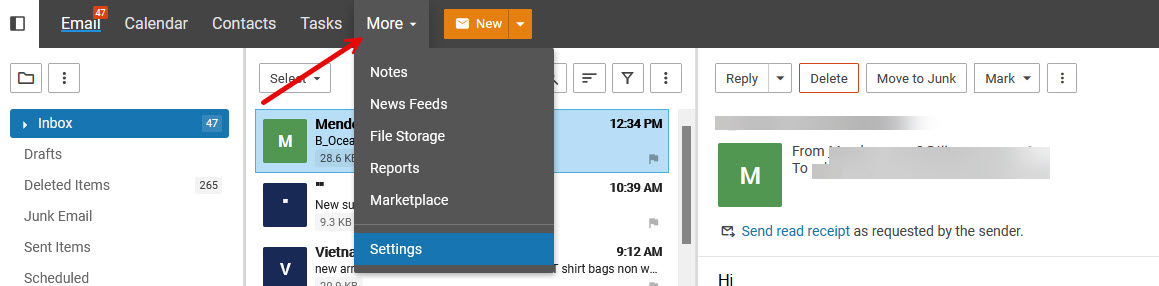
Click More at the top.
Choose Settings
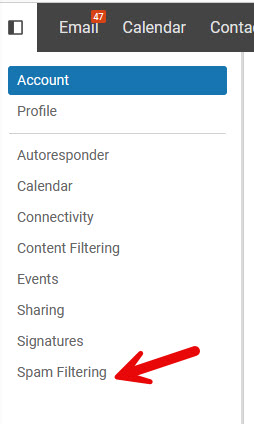
On the left menu, choose Spam Filtering
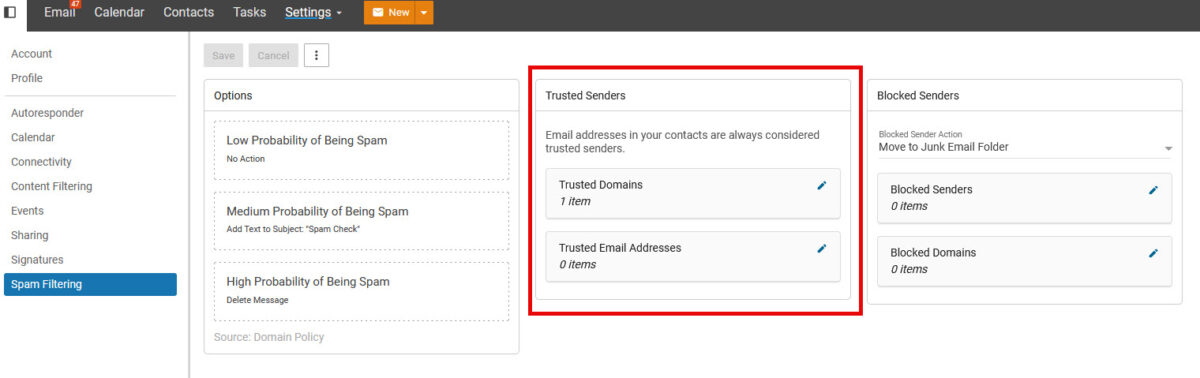
You’ll see two boxes under Trusted Senders
- Trusted Domains – Add domains (the part AFTER the@ in the email address) for any domains you wish to add.
- Trusted Senders – Enter specific email address you want to trust
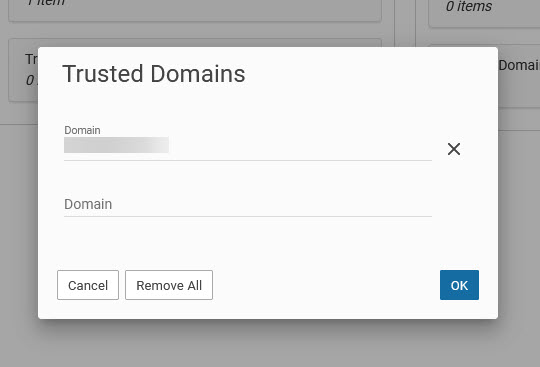
Click the Edit icon on the desired list. Enter a domain or email address. There is always one blank line available. Once you fill that line another line becomes available.
Click OK when you’re done.
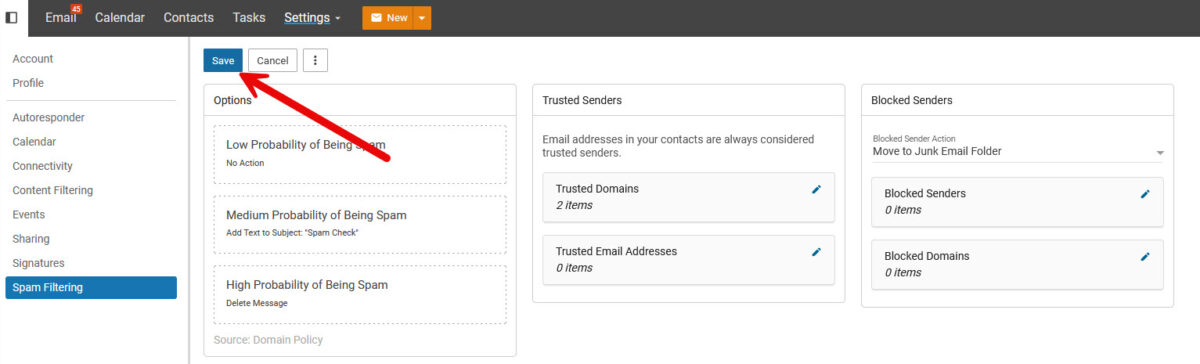
Once you’ve finished, it’s ESSENTIAL THAT YOU CLICK THE SAVE BUTTON in the top corner.
Blocked Domains vs Blocked Emails
- The domain is the part AFTER the @ in the email address.
- Adding a domain means anyone sending from that domain is not filtered as spam.
- This is ideal if you want to get all the emails from a company. This is ideal for companies you work with often.
- Do not add domains for services with free email like aol.com, gmail.com, yahoo.com as that would allow a tremendous amount of spam through. Rather just add the specific email address like john.smith32@gmail.com or momdad.smith@aol.com.
Examples:
- ABCinc.com – you would receive emails from info@ABCinc.com or fred.johnson@ABCinc.com without any spam filtering.
- John.smith32@gmail.com – you would receive email from john.smith@gmail.com without any filtering, but emails from jsmith452@gmail.com would go through normal filtering before being placed in your inbox.
Blocked Senders
The tools work the same for blocked senders. You can block senders or domains the same way.
From the Smartermail Interface
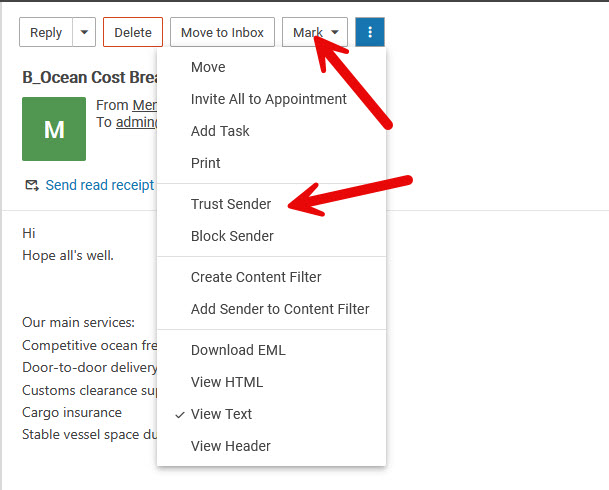
If you use the smartermail interface you can Trust Senders or Block Senders right from a message. (This does not work in Outlook – just in the Smartermail interface at wm.gds.us.)
When you have a message opened, click Mark at the top and you’ll See Trust Sender and Block Sender as options. This will add the sender to the Trusted Email list or Block Email List.
Adding Trusted Senders as a Domain Admin
A domain admin has two possible places to manage spam filtering, and the difference matters.
If the domain admin goes to Settings, those changes affect only the admin’s own mailbox, just like a regular user. This is useful if the admin only wants to trust a sender personally.
To make changes for everyone at the domain:
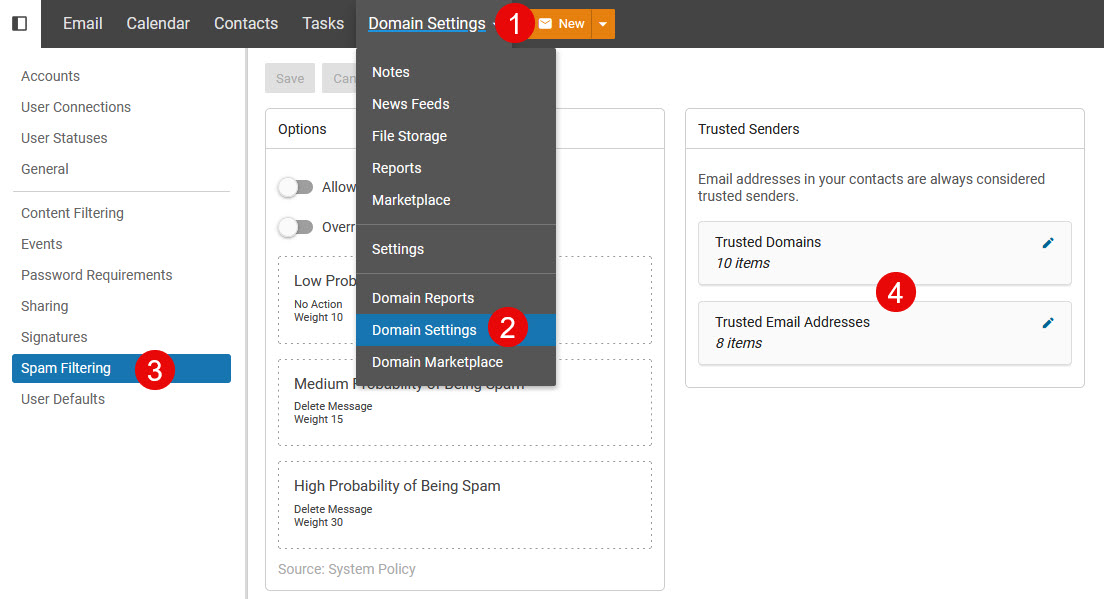
- Open the top menu and choose Domain Settings.
- In the left menu, click Spam Filtering.
- Find the Trusted Senders section.
- Click the edit pencil beside Trusted Domains to add a domain for all users.
- Example: add
vendorcompany.comif everyone in your organization regularly receives legitimate email from that vendor.
- Example: add
- Click the edit pencil beside Trusted Email Addresses to add a specific sender for all users.
- Example: add
billing@vendorcompany.comif only that address needs to be trusted.
- Example: add
- Save your changes.
Domain-level Trusted Senders affect all mailboxes in that domain, so they should be used carefully. In general, trust a full domain only when you are confident that the entire organization sends legitimate email. For individual people, especially those using Gmail, Yahoo, Outlook, Comcast, or other public email providers, add the full email address instead of the domain.